Monday, 26 February 2007

The first Idea - The CUPS Printing System -

What have you need ?

  • What Computer models ?
    • Intel 486 family SX, DX, DX2 .....
    • Intel Pentium family , MMX, II, III ....
    • Intel Celeron family
  • Hardware components:
    • Base : Hard Disk Drive, CPU, RAM, Video Card, Floppy Disk & CDRom
    • RJ45 Network Cards ,
    • Print interface,
    • Printer,
  • Operating System:
    • Linux !!!!!!!!!!!

Example --->

We have a PC like this one :
Pentium MMX 133Mhz, 64 Mb Ram, HD 512Mb, A Network Card 10 Mbps, CDRom 12x, SVGA max 800x600, floppy disk, Monitor 14'', Keyboard and mouse.

  • Installation Slackware Operating System following the post link
  • Configure Cupsd Print Service :

Connect with ssh client to the print server machine, example using putty.
Edit the file /etc/cups/cupsd.conf to configure the cupsd print service :
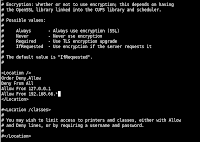

in the ... add the " Allow From [network] " to grant access to the cups web interface, example :
"Allow From 192.168.66.*"
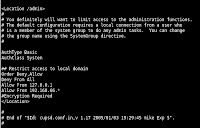

in the ... add the " Allow From [network] " to grant access administration cupsd server, example :
"Allow From 192.168.66.*"

Start the cupsd service : /etc/rc.d/rc.cupsd start
Access the web addministration interface to manage cupsd service :
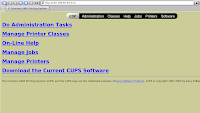

url : http://hostname:631 example "http://192.168.66.99:631"
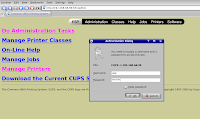

To access the adminisration section, click "Administration" on top menĂ¹ and insert the user and password of the root account.
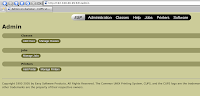


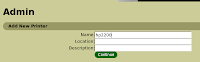
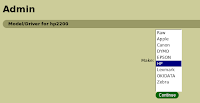
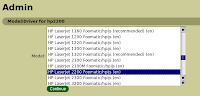
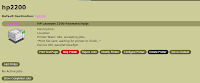
In the section "Printers" click "Add Printer", enter the "Name" and click "Continue", select the "Device: Parallel Port #1" and click "Continue", select the printer model and click "Continue", select the driver and click "Continue". Click on the printer name to finish installation.
  • Configure Linux Client
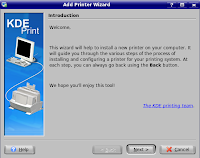
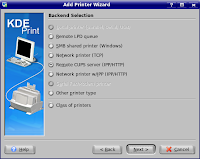
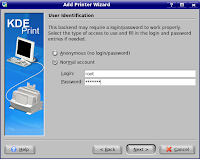
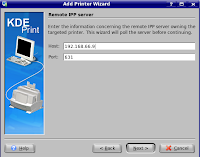
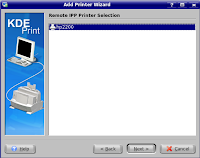
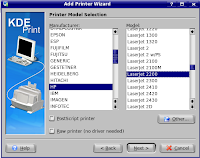
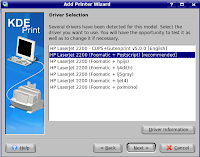
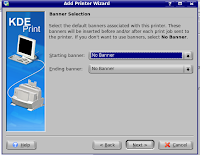
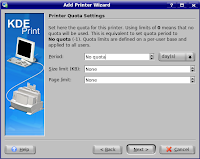
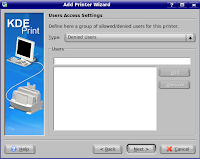
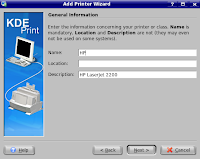
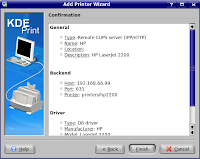
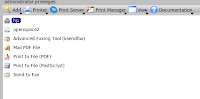
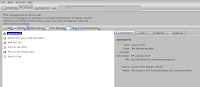
With the "Kde printing management" you can install your printer, follows these steps :


Your Printer now is ready !!!

  • Configure Windows Client
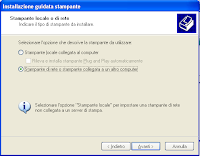
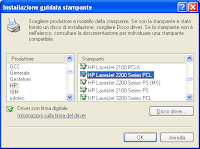
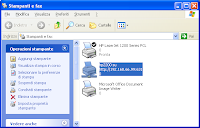
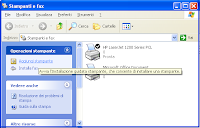
You can install your printer, follows these steps :


Your Printer now is ready !!!
Labels: ,

Tuesday, 20 February 2007

The second idea -- Linux Router --

What have you need ?

  • What Computer models ?
    • Intel 486 family SX, DX, DX2 .....
    • Intel Pentium family , MMX, II, III ....
    • Intel Celeron family
  • Hardware components:
    • Base : Hard Disk Drive, CPU, RAM, Video Card, Floppy Disk & CDRom
    • Two RJ45 Network Cards , or more
  • Operating System:
    • Linux !!!!!!!!!!!

Example --->

We have a PC like this one :
Pentium MMX 133Mhz, 64 Mb Ram, HD 512Mb, Two Network Cards 10 Mbps, CDRom 12x, SVGA max 800x600, floppy disk, Monitor 14'', Keyboard and mouse.

  • Installation Slackware Operating System Following the post link
Attetion !! in section "Select Packages to install" you well have to choose A,D,L & N
Attetion !! during setup installation, for "Packages Seriers L (Libraries)", check only glib, glib2, glibc

  • Router Configuration
There is a routing software suite that providing implementations of OSPFv2, OSPFv3, RIP v1 and v2, RIPng and BGP-4 for Unix platforms, particularly FreeBSD, Linux, Solaris and NetBSD.
"Quagga" http://www.quagga.net/ is a fork of GNU Zebra acts as an abstraction layer to the underlying Unix kernel.

  • Installation Quagga ver. 0.98.6 on Slackware 10.0
Download the software from http://www.quagga.net/download/quagga-0.98.6.tar.gz and follows these steps to install :
  1. untar the package "routerlx# tar xvfz quagga-0.98.6.tar.gz "
  2. build the software
    1. routerlx:# cd quagga-0.98.6
    2. routerlx:# ./confiugre
    3. routerlx:# ./make
    4. routerlx:# ./make install
  3. Attention, after the build the space left on disk, delete the quagga-0.98.6.tar.gz and the quagga-0.98.6 folder.
  4. Edit the file "/etc/profile" and insert the variable "export LD_LIBRARY_PATH=/usr/local/lib"
  5. Reload the profile : "routerlx:#. /etc/profile"
  6. Copy the file "/usr/local/etc/zebra.conf.sample" in "/usr/local/etc/zebra.conf"
  7. Edit the file "/usr/local/etc/zebra.conf" and set these parameters :
    1. !
      ! Zebra configuration saved from vty
      ! 2007/03/14 08:18:03
      !
      hostname Routerlx
      password zebra
      enable password zebra
      !
  8. Start the zebra services "routerlx:#/usr/local/sbin/zebra -d -u root -g root"
  9. Edit the file "/etc/rc.d/rc.local" and add the command "/usr/local/sbin/zebra -d -u root -g root"
  10. Connect to routerlx with "telnet [ip address] 2601" example : telnet 192.168.66.99 2601

    1. Trying 192.168.66.99...
      Connected to 192.168.66.99.
      Escape character is '^]'.

      Hello, this is Quagga (version 0.98.6).
      Copyright 1996-2005 Kunihiro Ishiguro, et al.


      User Access Verification

      Password:
      Routerlx> enable
      Password:
      Routerlx#
      configure Configuration from vty interface
      copy Copy configuration
      debug Debugging functions (see also 'undebug')
      disable Turn off privileged mode command
      echo Echo a message back to the vty
      end End current mode and change to enable mode.
      exit Exit current mode and down to previous mode
      help Description of the interactive help system
      list Print command list
      logmsg Send a message to enabled logging destinations
      no Negate a command or set its defaults
      quit Exit current mode and down to previous mode
      show Show running system information
      terminal Set terminal line parameters
      who Display who is on vty
      write Write running configuration to memory, network, or terminal
      Routerlx#
  11. Your Router Now is Ready !!!!!!!!!!!!!!!!!!

Labels: , , ,

Monday, 19 February 2007

The third idea -- Linux Firewall --

This system currently takes up less than 6MB on the CD Rom or Compact Flash and is based on a bare-bones version of FreeBSD, along with a web server, PHP and a few other utilities. The entire system configuration is stored in one single XML text file to keep things transparent.
We will use the the m0n0wall embedded firewall software package http://m0n0.ch/wall/

What have you need ?

  • What Computer models ?
    • Intel 486 family SX, DX, DX2 .....
    • Intel Pentium family , MMX, II, III ....
    • Intel Celeron family
  • Hardware components:
    • Base : CPU, RAM, Hrad Disk,Video Card, Floppy Disk & CDRom
    • Two RJ45 Network Cards , or more
  • Operating System:
    • m0n0wall !!!!!!!!!!!

Example --->

We have a PC like this one :
Pentium MMX 133Mhz, 64 Mb Ram,Hard Disk 512 MB, Two Network Cards 10/100 Mbps, CDRom 12x, SVGA max 800x600, floppy disk, Monitor 14'', Keyboard and mouse.

  • Installation m0n0wall ver. 1.23
Download the image from http://m0n0.ch/wall/download.php?file=generic-pc-1.23.img
Install your hard drive to another pc , for example connect the HD to the secondary ide interface.
On Linux system execute this command to write the image on your HD:
gunzip -c net45xx-xxx.img | dd of=/dev/hdX bs=16k
where /dev/hdx is the second ide interface, example "/dev/hdb/" or "/dev/sdb"
Now you have to install the hd on your computer ready for firewall services
Boot the computer :


Configure the lan network interface:

Select 1 to assign the network ports


Select 2 to assign the lan ip address


Connect to Web Admin interface , example http://192.168.66.99/


Now the system is ready to cofiguring firwall, followig this guide http://doc.m0n0.ch/quickstartpc/
for details

Labels: , , ,

Sunday, 18 February 2007

The fourth idea -- Linux Reverse Proxy Apache --

What have you need ?

  • What Computer models ?
    • Intel 486 family SX, DX, DX2 .....
    • Intel Pentium family , MMX, II, III ....
    • Intel Celeron family
  • Hardware components:
    • Base : Hard Disk Drive, CPU, RAM, Video Card, Floppy Disk & CDRom
    • RJ45 Network Cards ,
  • Operating System:
    • Linux !!!!!!!!!!!

Example --->

We have a PC like this one :
Pentium MMX 133Mhz, 64 Mb Ram, HD 512Mb, A Network Card 10 Mbps, CDRom 12x, SVGA max 800x600, floppy disk, Monitor 14'', Keyboard and mouse.

Installation Ubuntu Operating System following the post link

"......A reverse proxy is a gateway for servers, and enables one web server to provide content from another transparently. As with a standard proxy, a reverse proxy may serve to improve performance of the web by caching; this is a simple way to mirror a website. But the most common reason to run a reverse proxy is to enable controlled access from the Web at large to servers behind a firewall........." [referrer]


Installation Apache on Ubuntu

If your ubuntu system is connect to internet, follow these steps :
  • type the command # sudo apt-get install apache2 ;insert the root password to continue
  • insert the media Ubuntu cdrom
  • test your web server with a browser ;insert url http://192.168.66.156
The example scenario :


Configuring Apache Web Server
  • type these commands to enable proxy and rewrite modules:
  • # sudo a2enmod proxy ;insert the root password
  • # sudo a2enmod rewrite
  • # sudo a2enmod proxy_http

  • # sudo /etc/init.d/apache2 restart
  • create the file test.conf in directory /etc/apache2/conf.d
  • # sudo vi test.conf
  • insert in the file :

  • NameVirtualHost 192.168.66.156:80
    ''
    ServerName test.apache.local

    Order deny,allow
    Allow from all

    RewriteEngine on
    ProxyPass / http://www.cisco.com/
    ProxyPassReverse / http://www.cisco.com/*
    '
    '
  • test your reverse proxy with a browser ; insert the url http://test.apache.local/
Note: for this test insert in Operating System file hosts the directive:
[Ip Address ] test.apache.local
for windows "c:\[windir]\system32\drivers\etc" and for linux "/etc/hosts" .

Labels: , , , ,

Saturday, 17 February 2007

Ubuntu Smtp Server

To configure a Smtp Server with Ubuntu System follow these steps:

Install postfix package :
root@testob:~# apt-get install postfix

follow the wizard configuration , sample :


For more configuration you have to use the dpkg-reconfigure utility :
root@testob:~# dpkg-reconfigure postfix

follow this wizard :


Now test your smtp server with telnet utility , sample :

user@hostname:~$ telnet 192.168.66.137 25
Trying 192.168.66.137...
Connected to 192.168.66.137.
Escape character is '^]'.
220 testob.domain.com ESMTP Postfix (Ubuntu)
helo pccicla.blogspot.com
250 testob.domain.com
helo pccicla.blogspot.com
250 testob.domain.com
mail from: pier[at]pccicla.it
250 Ok
rcpt to: piergiovanni[at]gmail.com
250 Ok
data
354 End data with .
Test
.
250 Ok: queued as 4010719220
quit
221 Bye
Connection closed by foreign host.

Labels: , ,

Friday, 16 February 2007

Ubuntu Tips'n'Tricks

  • Enable root user
    • user@ubuntu:~$ sudo passwd root
      • insert the password for root user
  • Configure OpenSSH server (the system is connection to internet)
    • user@ubuntu:~$ sudo apt-get install ssh openssh-server
      • the service installed is the "ssh", to restart use the command:
      • user@ubuntu:~$ sudo /etc/init.d/ssh restart
  • Configure Network Services
    • enable dhcp service
      • user@ubuntu:~$ sudo vi /etc/network/interfaces
      • insert these lines in file "interfaces" :
      • # The primary network interface
        auto eth0
        iface eth0 inet dhcp
      • to activate the network interface :
      • user@ubuntu:~$ sudo /etc/init.d/networking restart
    • configure static ip address
      • user@ubuntu:~$ sudo vi /etc/network/interfaces
      • insert these lines in file "interfaces" :
      • # The primary network interface
        auto eth0
        iface eth0 inet static
        address 192.168.66.60
        gateway 192.168.66.254
        netmask 255.255.255.0
        network 192.168.66.0
        broadcast 192.168.66.255
      • to activate the network interface :
      • user@ubuntu:~$ sudo /etc/init.d/networking restart

Labels: , , ,

Thursday, 15 February 2007

Using public keys for SSH authentication

With the ssh freeware utilities we can login on a Ubuntu server without type a password.
Example :

follow these steps:

user@hostname:~$ ssh-keygen -t rsa
Generating public/private rsa key pair.
Enter file in which to save the key (/home/user/.ssh/id_rsa):
Enter passphrase (empty for no passphrase): (type nothing)
Enter same passphrase again: (type nothing)
Your identification has been saved in /home/user/.ssh/id_rsa.
Your public key has been saved in /home/user/.ssh/id_rsa.pub.
The key fingerprint is:
2e:24:d1:d9:f2:43:fc:6c:89:91:be:7e:db:a5:99:bf user@hostname
user@hostname:~$
user@hostname:~$
user@hostname:~$ scp /home/user/.ssh/id_rsa.pub root@server_hostname:/root/authorized_keys
root@server_hostname's password: (type password of root )
id_rsa.pub 100% 408 0.4KB/s 00:00
user@hostname:~$
user@hostname:~$ ssh -l root server_hostname
root@server_hostname's password: (type password of root )
user@server_hostname:~$ mkdir .ssh
user@server_hostname:~$ mv authorized_keys .ssh/
user@server_hostname:~$ exit
logout
Connection to server_hostname closed.
user@hostname:~$
user@hostname:~$ ssh root@server_hostname
user@server_hostname:~$ You enter in the server without type a password !!!!!!!!!!!!!!

Labels: , ,